Working with tasks
How to find your tasks
To view information about your tasks, open the Tasks page in the left-hand navigation panel. The Tasks page shows your personal task dashboard and the full list of tasks assigned to or created by you.
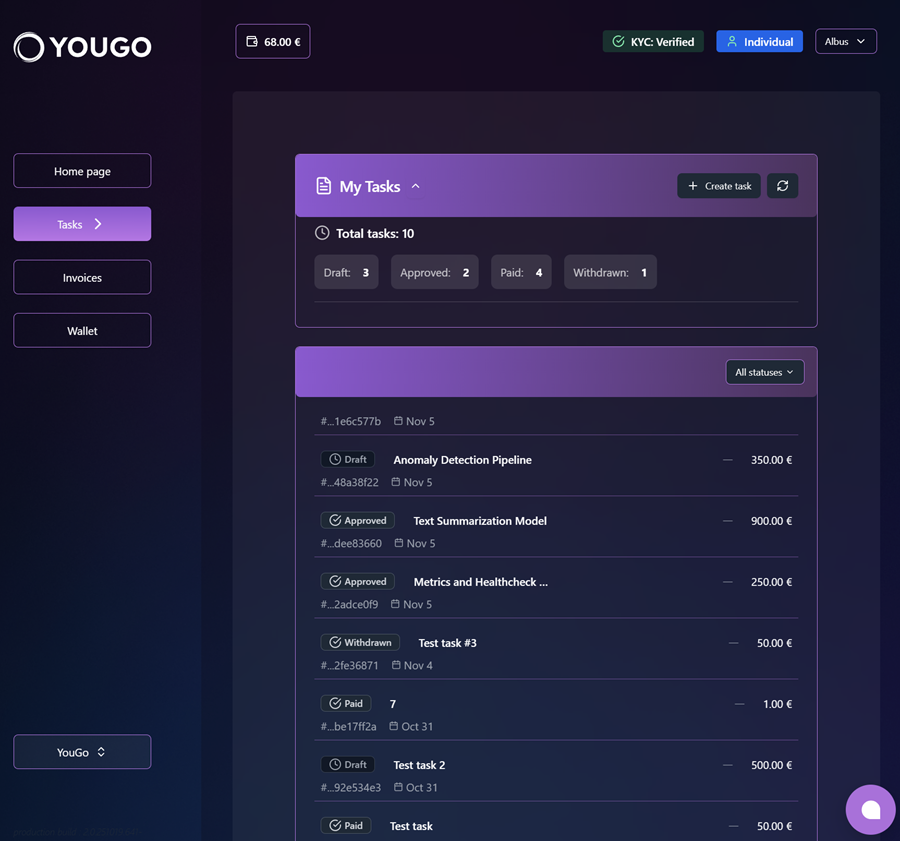
Task status quick meanings
-
Draft - task published, but not yet done
-
Approved - the task has been accepted/approved by the client or project owner
-
Paid - contractor has received the payment for the task into their YouGo wallet
-
Withdrawn - the contractor has transferred funds from their YouGo wallet to an external payment method
How to create a new task
To create a new task click the "Create task" button and modal window will be shown.
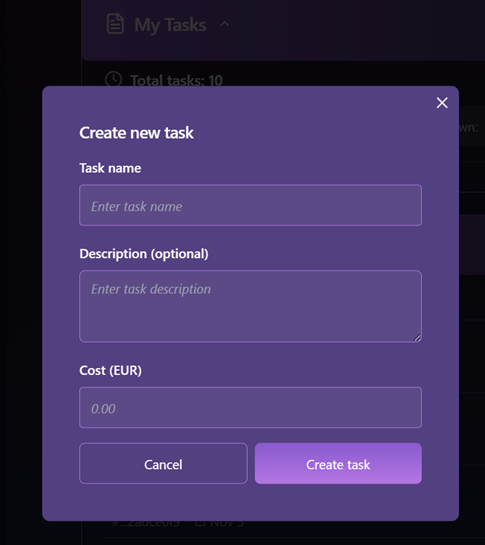
Complete the form with a task name, description/scope and price. The task is automatically assigned to you; once created, the task immediately appears in the list with the initial status (Draft) and becomes visible to the client or project owner.
Notes
-
The task price is specified in the project’s wallet currency
-
The currency for a task cannot be changed
-
Only the client / project owner can change the task status (for example, to Approved or Paid) after the task has been approved or paid.