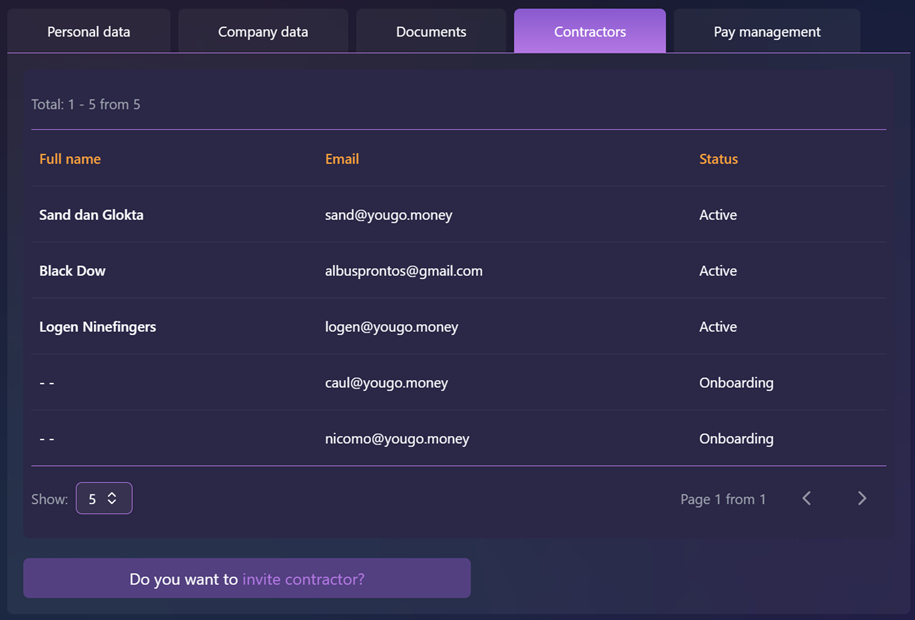
Where I can find information about my employees?
To view information about your employees (contractors), open the Home page in the left-hand navigation panel and select Contractors tab. This page shows each employee’s full name, email address and current status.
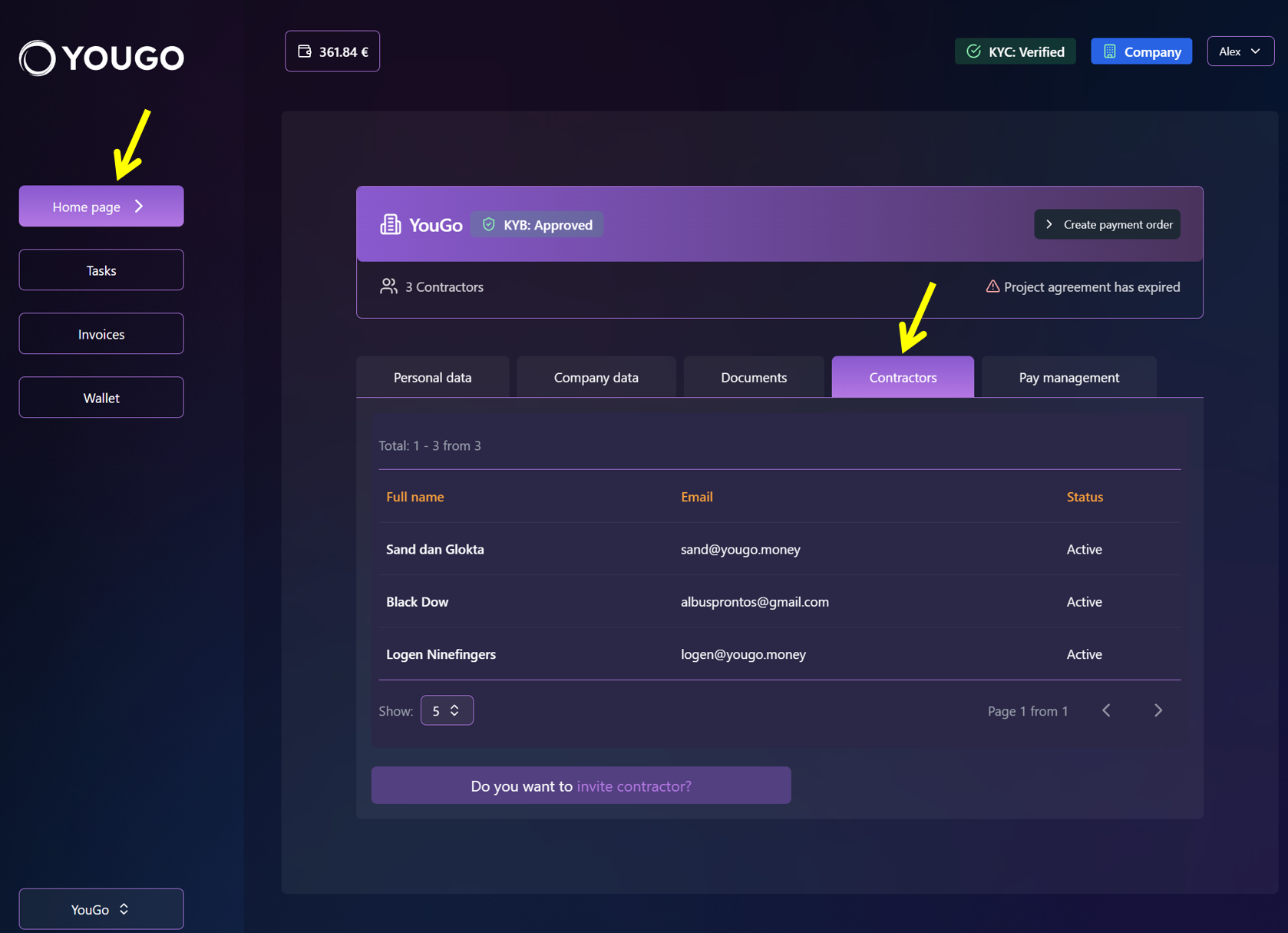
How I can invite new contractor / employee?
To invite a contractor or employee to a project, click the "Do you want to invite contractor?" link. A three-step wizard will open to guide you through the process.
Step 1 - Employment type
Choose the employment type: "EOR" (Employer of Record) or "Contractor" (self-employed / freelancer). Note: EOR is not supported yet and will be introduced later. "Contractor" is selected by default.
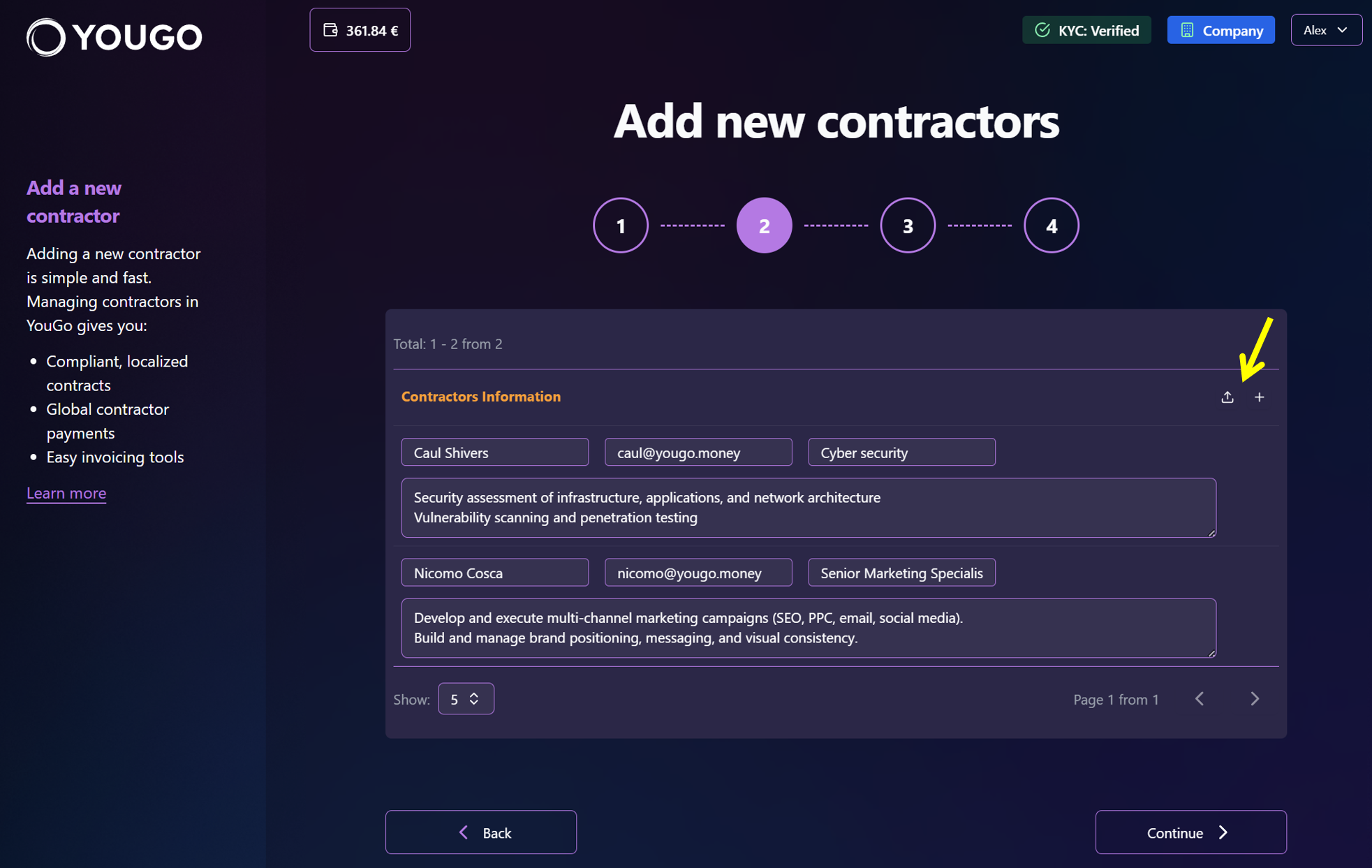
Step 2 - Add people
To add another entry, click the plus (+) icon. Enter each person’s details: first and last name, email address, position, and a brief description of the scope of work. You can also upload a CSV file to import multiple contractors at once. You can review and edit the contractor details before finishing the flow.
Step 3 - Review master agreement
Read the prepared master agreement. Check the box to confirm that you have read it, then click Continue.
Step 4 - Finalize and send invitations
After you confirm the agreement, invitation emails containing a registration link will be sent to the addresses you provided. The invited contractors will appear in the table with the status "Onboarding" until they complete registration and any required signatures.